
Appearance
Inventory
Inventory is every pair you hold, one row per product and size. You add stock here, see where each size is listed and at what price, and open any size to see its whole history.
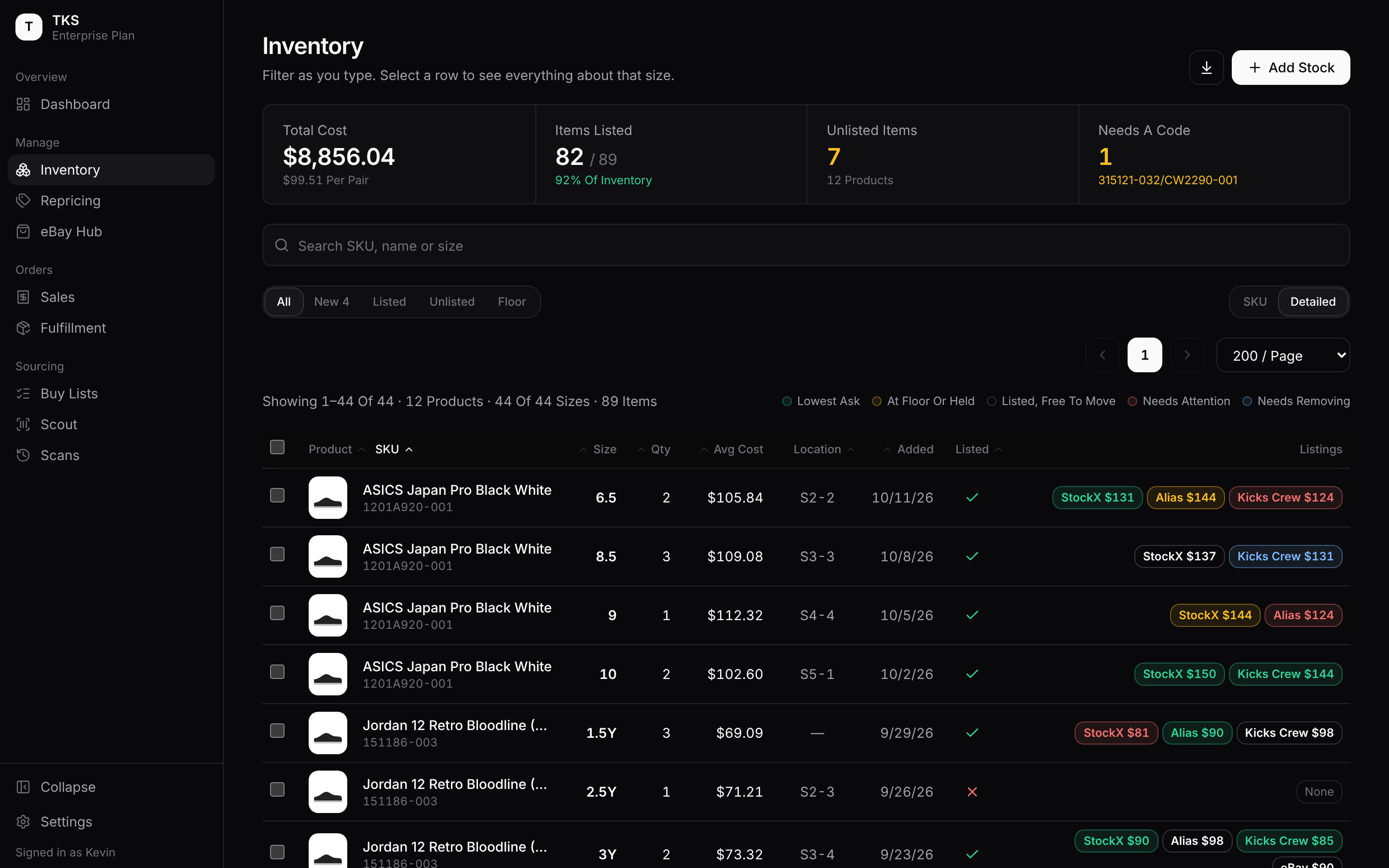
The Figures At The Top
- Total Cost
- What everything on hand cost you, and the average per pair.
- Items Listed Repricing Plans
- Pairs with a live listing on at least one marketplace, out of every pair you hold, and the share that is.
- Unlisted Items Repricing Plans
- Pairs with no live listing anywhere. It turns amber when it's above zero. Underneath is how many products you hold in all.
- Items Plans Without Repricing
- Every pair you hold, and how many products that is. It takes the place of the two listing figures.
- Needs A Code Admins
- Only appears when it applies. Some products are sold under two style codes, written like
315121-032/CW2290-001. Alias and Kicks Crew can't list one until you say which code is in the box. Open the size and pick the code, as described in The item page below.
Finding Stock
- Search
- Type part of a SKU, a product name or a size. The list filters as you type.
- Filters
- All: everything you hold.
- New: stock added recently. Choose 24h, 3d, 7d or 30d beside it; the count shows how many sizes that is.
- Listed: sizes live on at least one marketplace. Repricing Plans
- Unlisted: sizes live nowhere. Repricing Plans
- Floor: sizes where at least one listing is at its floor or held there. Repricing Plans
- Views
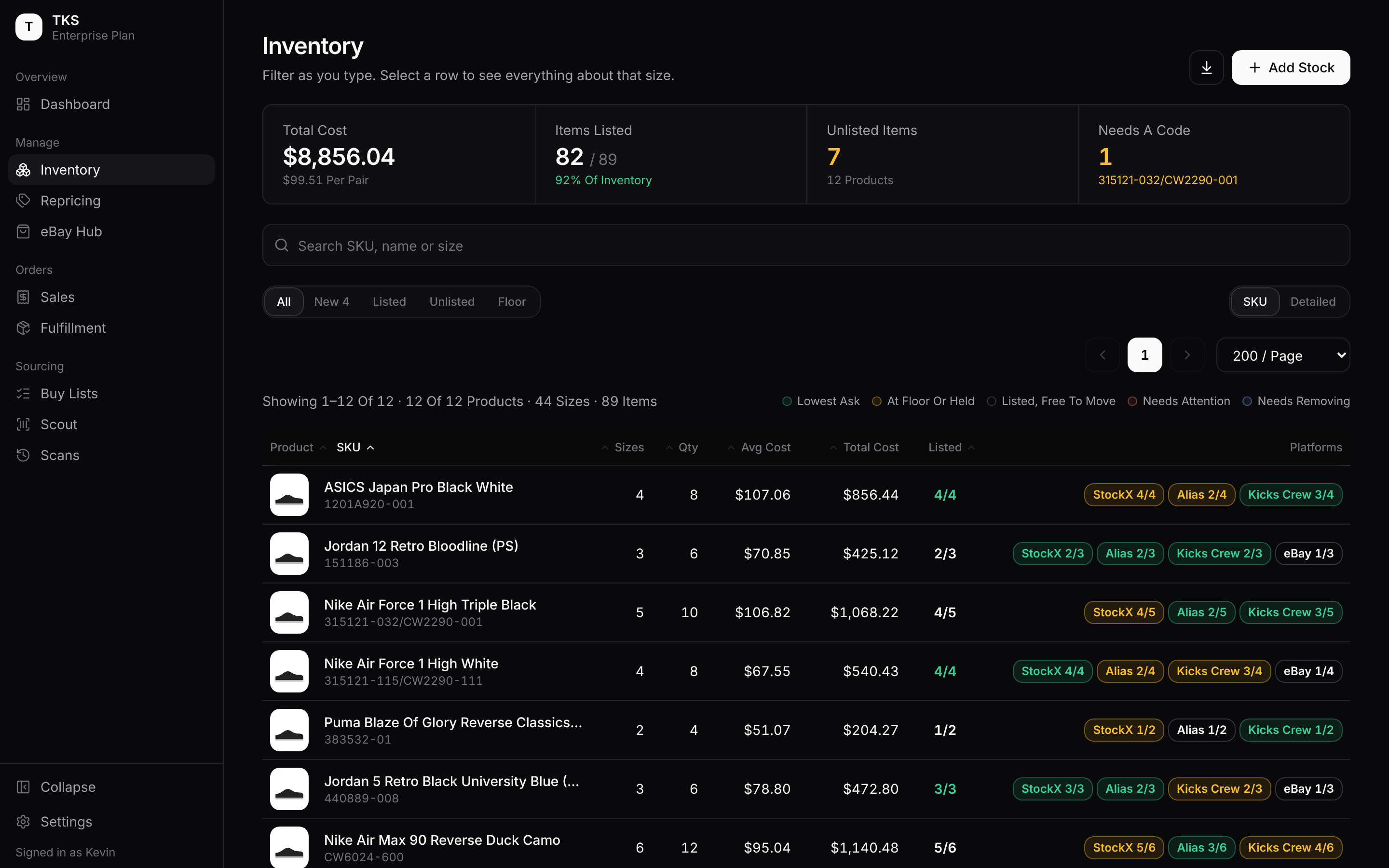
- Detailed: one row per size.
- SKU: one row per product, with its sizes added together. Click a product to see its sizes.
- Sorting
- Click a column heading to sort by it, and click again to reverse. Product and SKU share a column; click either word.
- Pages
- Choose how many rows show per page. Your filter, view and rows per page are remembered on that device.
Reading A Row
| Column | What it shows |
|---|---|
| Product / SKU | The name and style code. |
| Size | The size. |
| Qty | Pairs of that size you hold. |
| Avg Cost | The average cost per pair across your purchases of that size. A dash means no cost was recorded. |
| Location | Where it sits on your shelf. |
| Added | When it was first added. |
| Listed | A green tick if it's live somewhere, a red cross if not. Repricing Plans |
| Listings | One chip per marketplace, showing your price there. None when it's listed nowhere. Repricing Plans |
In the SKU view, Sizes counts the sizes you hold, Total Cost is everything that product cost, Listed shows how many of its sizes are live (green when all are), and Platforms shows how many sizes each marketplace has listed, e.g. StockX 3/4.
What The Chip Colours Mean
The legend above the table explains the colours:
| Colour | Means |
|---|---|
| Green: Lowest Ask | Your price is the lowest on that marketplace. |
| Amber: At Floor Or Held | The market is below your floor, so your price is held at the floor. |
| Plain: Listed, Free To Move | Listed, and the repricer is free to move it. |
| Red: Needs Attention | Something is wrong: no floor set, an error, or it should be listed and isn't. Point at the chip to see why. |
| Blue: Needs Removing | It's listed with no stock behind it, so it should come down. |
A chip with a dashed border is on a marketplace that's no longer connected. Point at any chip to see what the repricer last did with it.
Adding Stock
There are three ways to add stock, from the buttons at the top right.
Add Stock: One Product At A Time
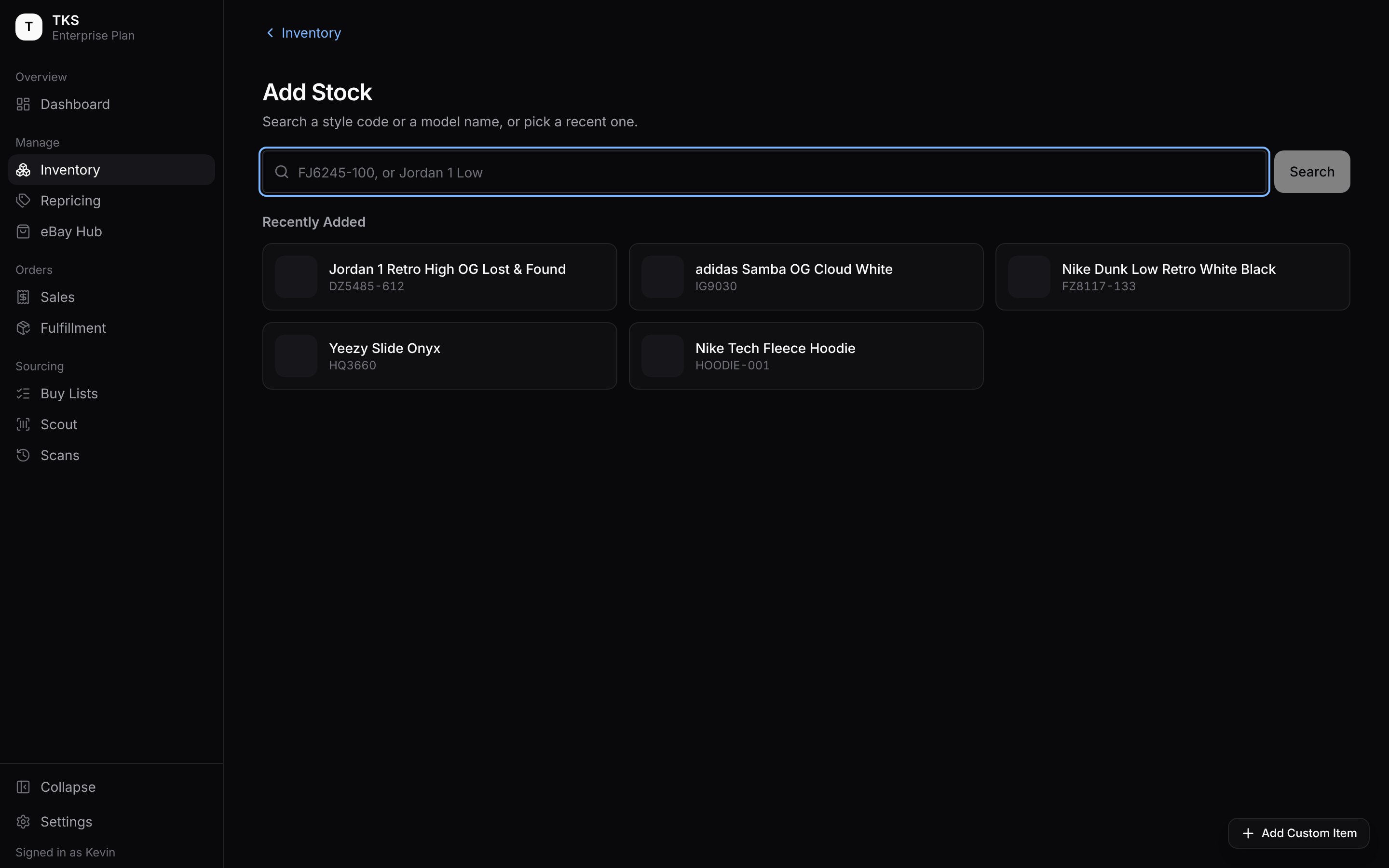
- Click Add Stock. Search for a style code (
FJ6245-100) or a model name (Jordan 1 Low), or pick one of your Recently Added products to restock it. - Pick the product. In Inventory shows the sizes of it you already hold.
- Fill in Place Of Purchase, the Date (today by default), Cost Pre-Tax and Tax %.
- Use + and − to set how many pairs of each size you bought. The cost fills every size; type over a size's cost to price it differently.
- Check the total along the bottom, then click Add To Inventory.
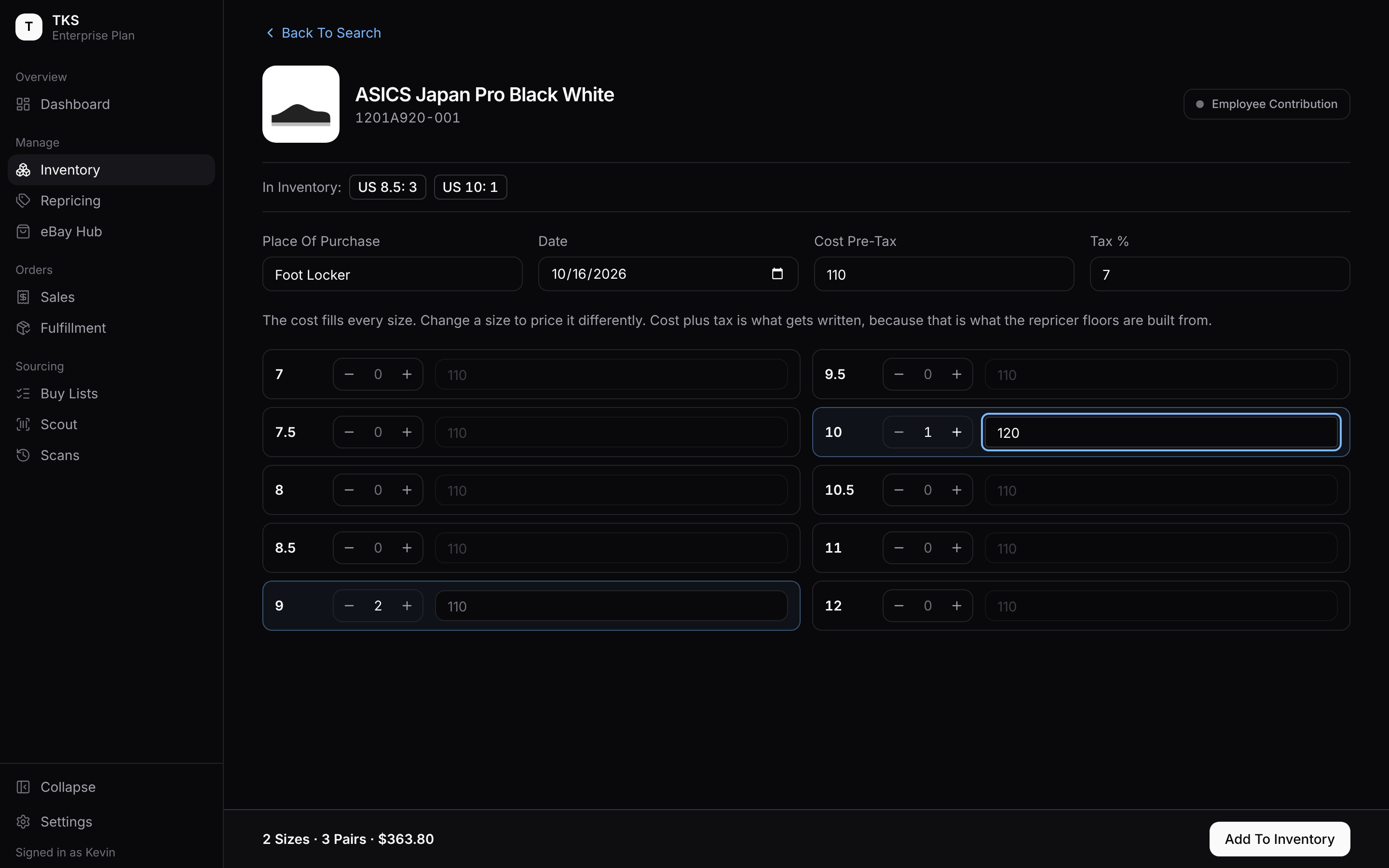
What you paid including tax is what gets saved, because your floors are built from what you actually paid. In the example, 2 pairs at $110 and 1 at $120, plus 7% tax, come to $363.80.
After adding, you're back at the search with Item successfully added! on top, ready for the next product. Each new product starts blank apart from the date, so the last store and cost don't carry over by mistake.
- Employee Contribution Admins
- Shown when staff bonuses are switched on (on plans that include them). Switch it on to credit pairs to the people who found them. Each credited pair is paid at that person's rate when it sells. Rates are set in Settings → Team.
Custom Items
For anything the catalogue doesn't have, like your own merch, vintage or a sample, click Add Custom Item (bottom right of the search screen). It's also offered when a search finds nothing.
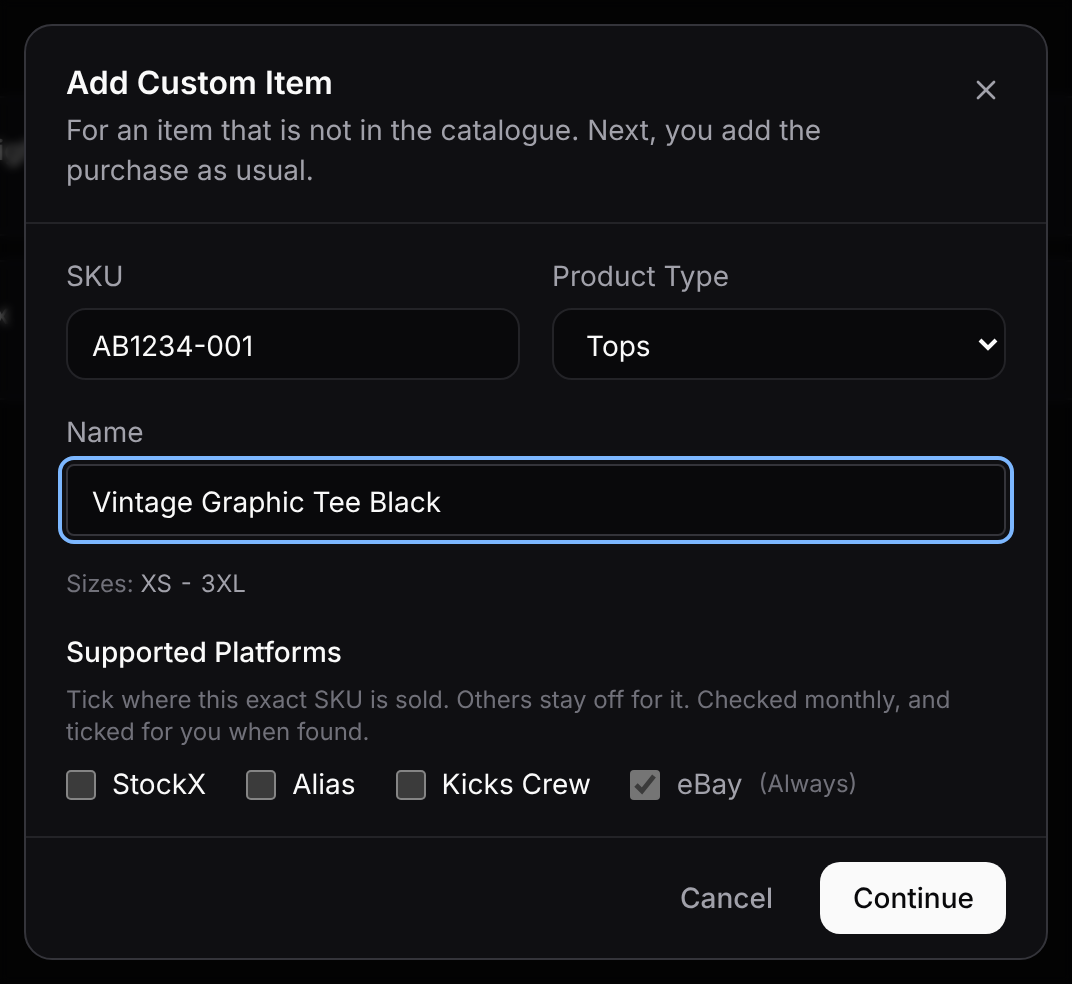
Give it a SKU, a Product Type (Tops, Bottoms, Footwear, Accessories or Collectibles) and a Name. Footwear also needs a Size Range: Men's, Women's, Grade School, Preschool or Toddler. TKS shows the sizes that range covers. Then tick its Supported Platforms, the marketplaces that sell this exact SKU. eBay is always ticked.
Continue takes you to the normal Add Stock screen for it.
TKS checks your custom items against the marketplaces every month. When one turns up on a new marketplace, TKS ticks it for you, says so on the Dashboard, and leaves repricing off there until you turn it on.
Import From A Spreadsheet Base Plan And Up
The quickest way to bring in a lot of stock. Click the import button (↓) beside Add Stock, then From A Spreadsheet (CSV).
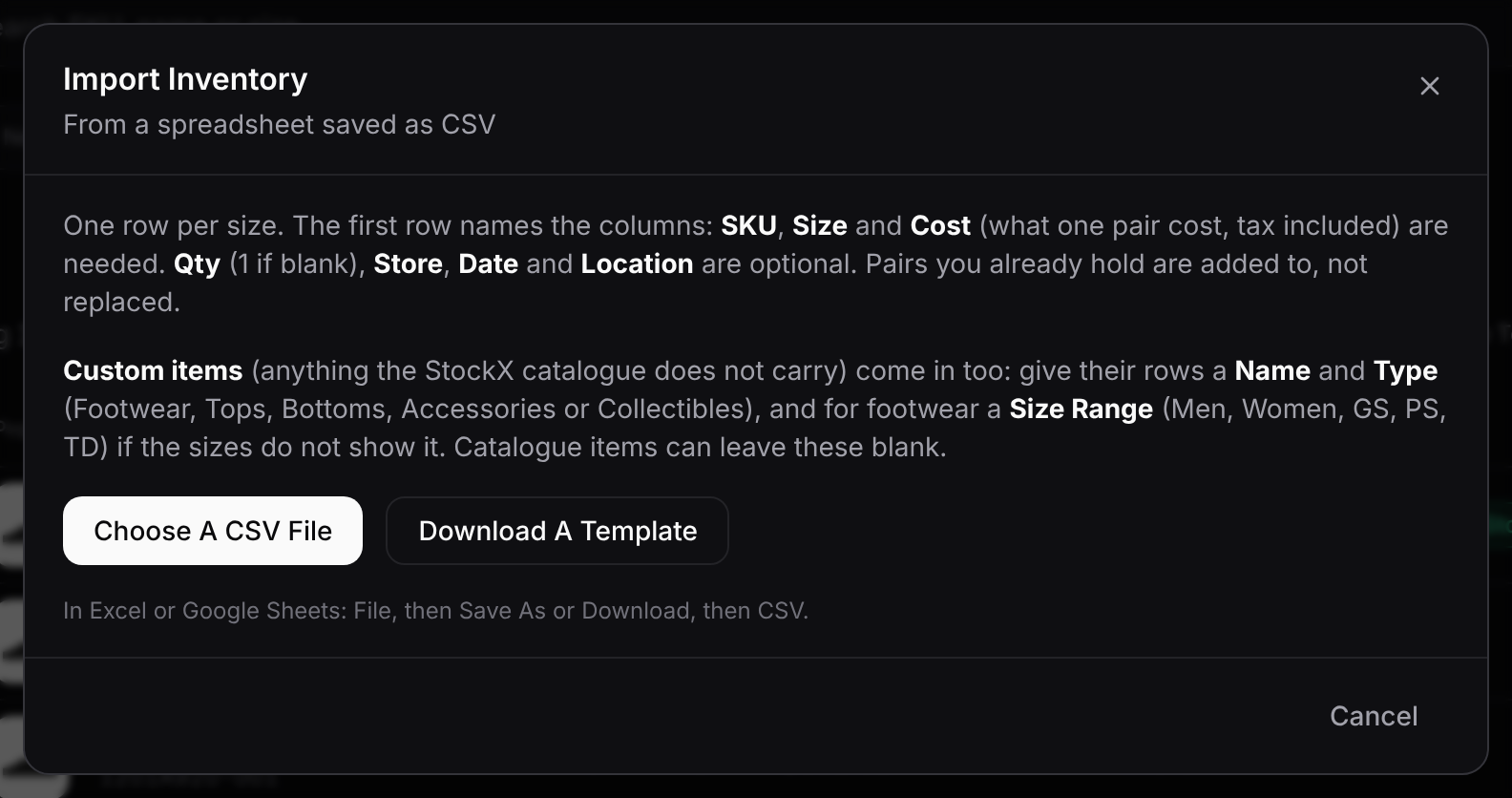
Save your spreadsheet as CSV: in Excel or Google Sheets, that's File, then Save As or Download, then CSV. Use one row per size. The first row names the columns:
| Column | Needed? | What goes in it |
|---|---|---|
| SKU | Yes | The style code. |
| Size | Yes | The size, e.g. 10, 9.5, 5Y, L. |
| Cost | Yes | What one pair cost, tax included. |
| Qty | No | How many pairs. 1 if blank. |
| Store | No | Where you bought it. |
| Date | No | When you bought it. |
| Location | No | Where it sits on your shelf. |
| Name, Type, Size Range | Custom items only | See below. |
Download A Template gives you a file with these columns and three example rows.
Custom items can come in the same way. Give their rows a Name and a Type (Footwear, Tops, Bottoms, Accessories or Collectibles). For footwear, also give a Size Range (Men, Women, GS, PS, TD) if the sizes don't already show it; for example, sizes like 5Y are read as GS. Leave these columns blank for products StockX carries.
When you choose the file, TKS checks it before anything is saved:
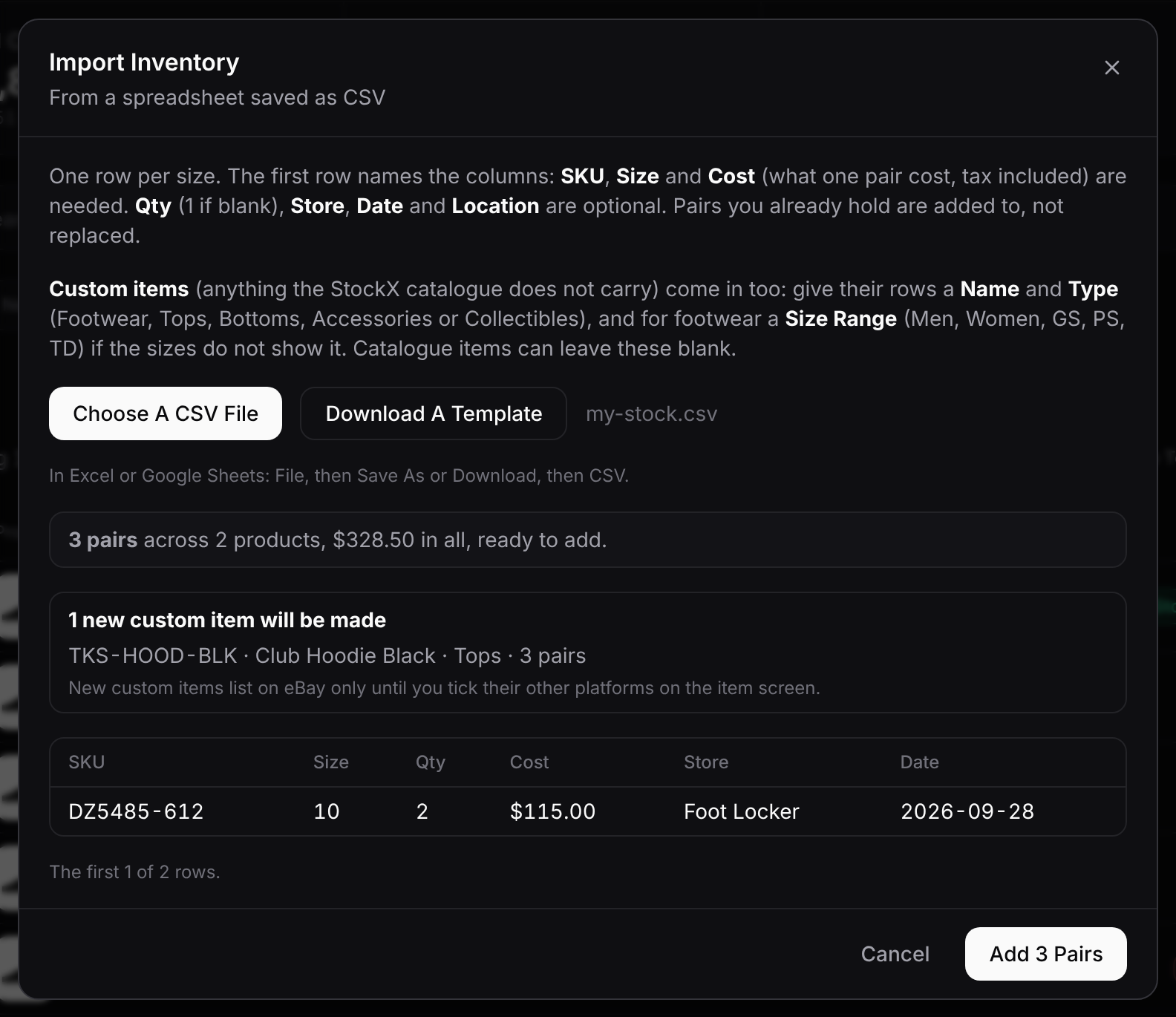
- how many pairs and products are ready, and their total cost
- which custom items it will create
- any rows with problems, by line number. These are left out; fix them and import again.
- the first few rows, to check the columns were read the right way
Click Add N Pairs to save. Pairs you already hold are added to, not replaced.
New custom items list on eBay only until you tick their other marketplaces on the item page.
Import From A Buy List Buy Lists Plans
When a buy list is closed, its stock can come straight into Inventory. Click the import button (↓), then From A Buy List.
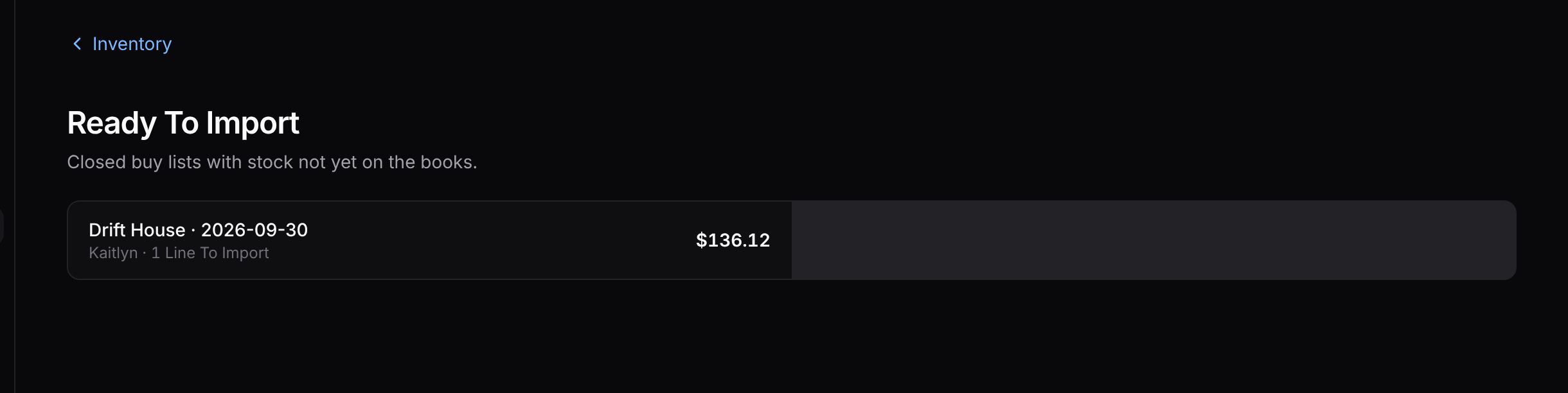
Ready To Import lists closed buy lists with stock that isn't on your books yet, with the store, date, buyer and total. Open one to see its lines:
- Pre-Tax is the shelf price.
- Post-Tax adds the list's tax rate. That's what gets saved.
Untick any line you don't want, then click Write N Purchases and confirm. Lines that can't be imported are listed with the reason.
The Item Page
Click any row in the Detailed view to open everything about that size.
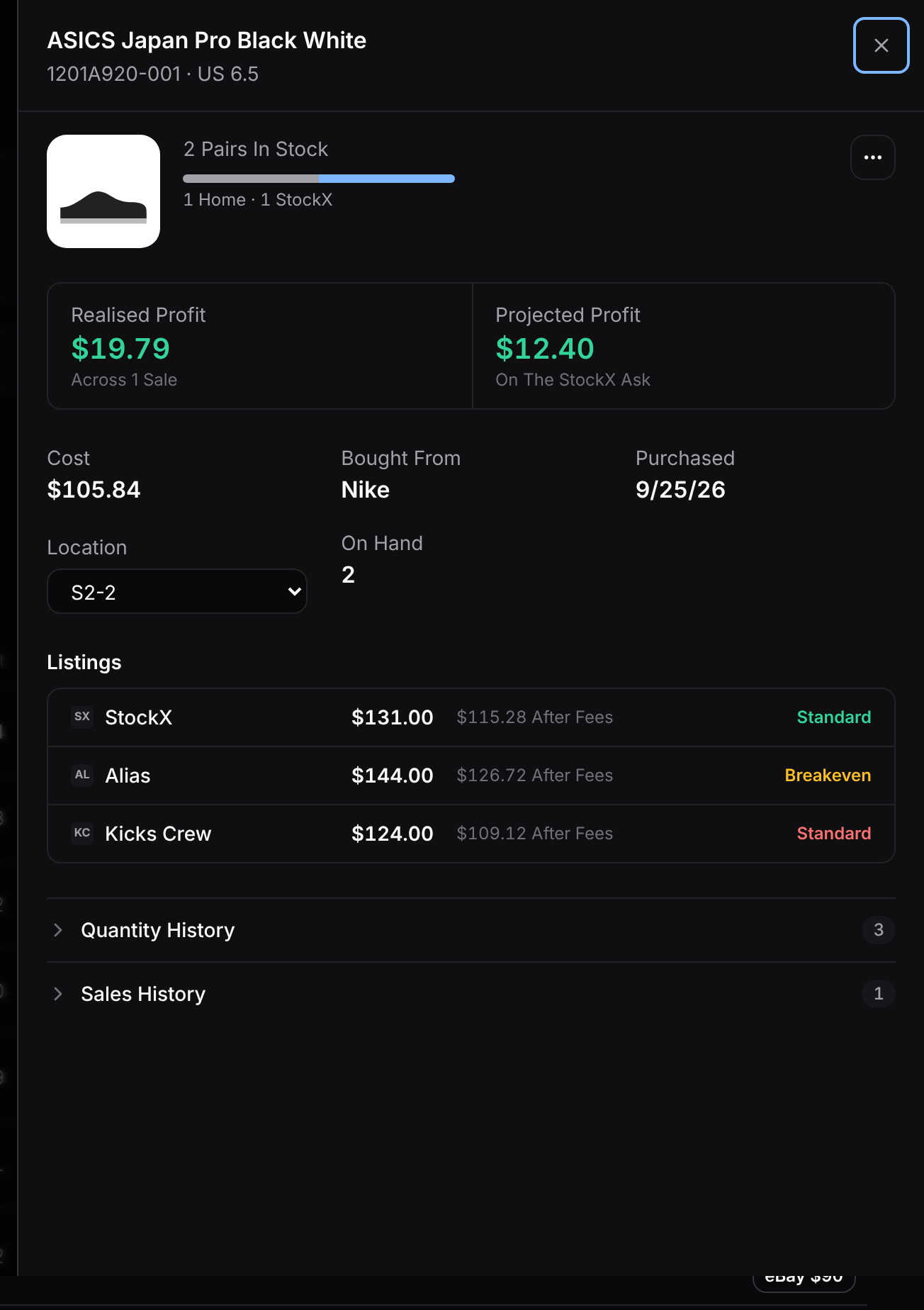
- Pairs In Stock
- How many you hold. If some are consigned at StockX Flex or Poizon, a bar shows how many are at home and how many are at each.
- Two Codes
- For a product sold under two style codes, choose which one is in the box. Until you do, Alias and Kicks Crew can't list it. Change switches it later.
- Realised Profit
- What this size has actually made, across every sale of it so far.
- Projected Profit
- What the next sale would make at your current StockX price, after StockX's fees and your cost. A dash if it isn't listed on StockX.
- Cost, Bought From, Purchased, On Hand
- The average cost per pair, where and when it was bought, and how many you hold. Every purchase of this size is listed under Quantity History.
- Location
- Pick a shelf location from the list. It saves as soon as you choose.
- Custom Item
- For a custom item, its type and size range, and its Supported Platforms, which you can change here. A green Now On … tag means the monthly check found it on a new marketplace.
- Listings Repricing Plans
- Each marketplace it's listed on: your price, what you'd get after fees, and the floor method, coloured like the chips in the table.
- Quantity History
- Every change to the count, newest first: purchases, sales, adjustments and deletions, with the store and price where there is one.
- Sales History
- Every sale of this size: the date, marketplace, sale price and profit.
Item Actions
The ⋯ button at the top right of the item page has three actions.
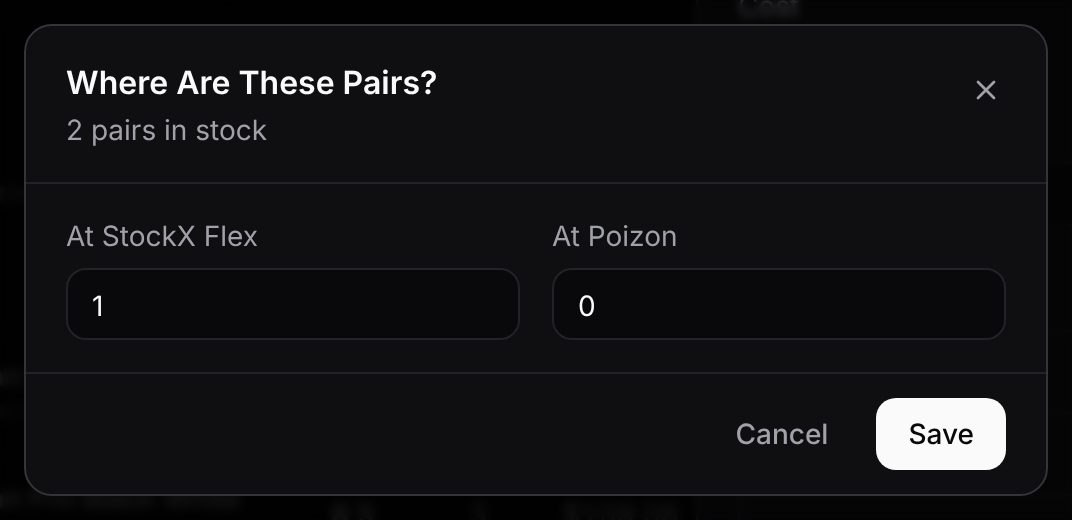
- Mark Consignment (or Edit Consignment)
- Say how many of these pairs are at StockX Flex and at Poizon, and not on your shelf.
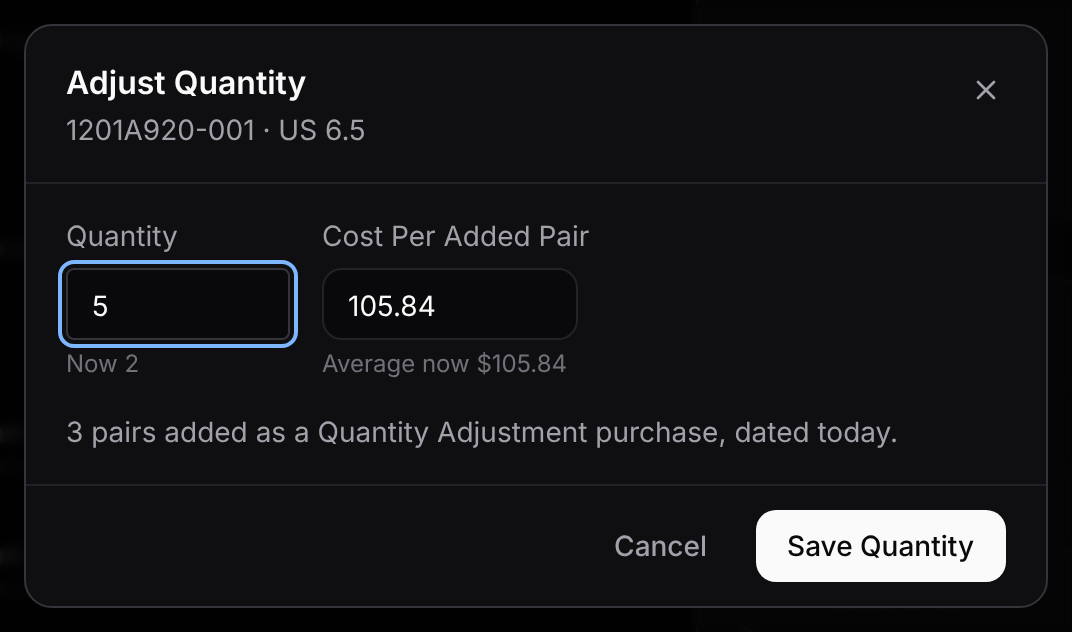
- Adjust Quantity
- Set the count to what's really on the shelf.
- Lower: the difference is removed from your oldest purchases, as a correction.
- Higher: the extra pairs are added as a Quantity Adjustment purchase dated today. You're asked what they cost; it starts at your current average, so your floors and profit don't move.
- Zero: the size is taken down from every marketplace first.
- Delete
- Removes pairs as if they were never bought: the purchase is reduced too. Use it to correct a mistake. If nothing is left, the size is taken down from every marketplace first. Sales are never recorded here; they come in on their own from your marketplaces.
Consignment
Consigned pairs are ones you've already sent to a marketplace's warehouse: StockX Flex or Poizon. They're still yours until they sell, so they stay in your count. But they're kept apart from the pairs on your shelf, so that everything you cross-list is allocated correctly.
- Consigned Pairs Are Never Auto-Listed Elsewhere.
- Only pairs at home are listed on your other marketplaces. A pair at StockX Flex can only sell on StockX, and a pair at Poizon only on Poizon (it sells through Poizon's own consignment listing). So Alias, Kicks Crew and eBay never advertise a pair that's sitting in someone else's warehouse.
- A Consignment Sale Never Takes A Pair Off Your Shelf.
- When a Flex or Poizon consignment pair sells, it comes out of what you have consigned there. The pairs at home stay exactly as they were, still listed everywhere they were.
- Marking It Keeps The Count Right.
- The item page shows the split, e.g. 1 Home · 1 StockX. If a Poizon consignment sale comes in for a size where you haven't marked anything at Poizon, TKS can't tell whether the pair that sold was the one on your shelf. Instead of guessing, it holds the sale in the Inbox for you to decide. Marking your consigned pairs as you send them avoids that.
To mark pairs, open the size, choose ⋯ → Mark Consignment, and enter how many are at each.
Changing Many Sizes At Once
Tick the box on the left of any rows in the Detailed view, or the box in the header to tick every row on the page. A bar appears along the bottom.

- Set Location To
- Type a location (or pick one you've used before) and click Set On N Sizes. Leaving it empty clears the location from every selected size, after asking first.
- Delete
- For pairs that were returned, damaged, lost or miscounted. Their stock and cost are removed, and each size is taken down from every marketplace first. You can note what happened to them. Sizes that can't be deleted are listed with the reason.
- Clear
- Unticks everything.
Common Questions
I added stock but it isn't showing. Usually it appears straight away. If the confirmation says Inventory will catch up within 15 minutes, the purchase is saved and the count follows shortly.
Why does a size show a dash for cost? No cost was recorded when it was added, so its profit and floor can't be worked out. To fix it, Delete those pairs (a correction, so nothing is counted as lost) and add them again with their cost.
What's the difference between Delete and a sale? A sale is recorded on its own when a marketplace order comes in, and it counts toward your sales and profit. Delete is for stock that left without being sold, or was never really there.
Why can't Alias or Kicks Crew list a product? Check Needs A Code at the top. The product has two style codes and you haven't said which one is in the box.