
Appearance
Repricing
Repricing is where you decide where each size sells, and the lowest price it may ever sell for. Once a size is switched on for a marketplace, TKS lists it there and its repricer keeps the price competitive on its own. It never goes under the floor you chose.
How It Works In One Minute
- Switch a size on for a marketplace. It starts on your starting floor method, Standard or Breakeven, which you set in Settings.
- TKS lists it. StockX and Alias are listed automatically; see Auto-Listing. Kicks Crew is listed by its repricer.
- The repricer moves the price on a schedule to stay competitive, following each marketplace's own rules.
- The floor stops it. If the market drops below your floor, the price waits at the floor instead of following it down. It shows as At Floor Or Held.
- When the size sells out, it comes down on every marketplace it's switched on for, within about a minute of TKS recording the sale. Sales reach TKS from each marketplace on their own schedule; Alias sales can take up to half an hour.
You choose two things per size and marketplace: whether it's on, and its floor method. TKS does the rest.
The Floor Methods
The floor is the lowest price a listing may sit at. Each method works it out from your cost, and it's always worked out after that marketplace's fees. So Standard means you still make 15% after StockX takes its cut, and the same method gives a different price on each marketplace.
| Method | The floor is… | Use it when |
|---|---|---|
| Standard | Cost + 15% margin, after fees | Normal stock you want a healthy margin on. |
| Breakeven | Cost + $5, after fees | You want it gone without losing money. |
| Liquidate (% Off Cost) | Your cost minus the % you choose (1–95%), after fees | You'll take a loss to free up the cash. 20% on a $100 pair lets it go as low as an $80 payout. |
| Match | No floor at all | You want it to follow the market wherever it goes. Use with care. |
| Hold | No repricing | You want the price left exactly where it is. |
Standard, Breakeven and Liquidate need a cost. Some older sizes show Manual: a fixed floor price set before these methods existed. Choosing a method switches them to it, but the old fixed price is kept in the background, and it matters when a size has no cost:
- No cost, and an old fixed floor: the repricer uses that old fixed floor, with no warning. Check these sizes' floors.
- No cost, and no fixed floor: no floor can be worked out, so the repricer leaves the size alone. It shows as Needs Attention (no floor).
- Match behaves differently on each marketplace:
- StockX: sits at the lowest ask instead of a dollar under it.
- Kicks Crew: keeps undercutting with nothing to stop it.
- Poizon: matches the price Poizon recommends.
Because nothing stops it, a bad ask from someone else can pull your price down with it.
Hold leaves the price alone, but a held size that sells out still comes down. Hold never leaves a listing up with no stock behind it.
Your StockX fees
StockX floors use your Seller Level (Level 1 = 9% … Level 5 = 7%, or StockX's $5 minimum fee if that's higher, plus 3% processing) and, for STV sales, your shipping cost per pair. Set both in Settings → Connections → StockX. Until you do, TKS assumes Level 5 with no shipping, and your floors may come out lower than you expect.
How Each Marketplace Is Repriced
Each marketplace allows different moves, so each repricer works a little differently. All of them respect the floor.
StockX
- Runs: every 2 hours.
- Aims for: $1 under the lowest ask.
- When you're already the lowest ask: your price stays put. TKS doesn't push it lower against yourself, and it doesn't raise it.
- When your own asks are the lowest: it sits at the market instead of undercutting itself a dollar every run.
- When the market is under your floor: your ask moves to the floor and waits there, first in line if the market recovers.
- When an ask is somehow under its floor (for example, after you lower a cost): it's raised to the floor.
- STV and Direct/Flex are priced separately. An STV ask is priced against the STV market, and a Direct or Flex ask against the Direct market. See StockX Market.
Alias
- Runs: every 4 hours.
- How it prices: Alias only lets a listing be moved to the lowest ask. It can't be set to an exact price or put a dollar under. So TKS matches the lowest ask.
- When the lowest ask is under your floor: Alias can't move the listing to the floor, so TKS leaves it where it is. It shows as At Floor Or Held.
- New Alias listings open at a price worked out from your StockX price; see Auto-Listing.
Kicks Crew
- Runs: every 4 hours.
- Aims for: $1 under the lowest ask, but never more than your StockX price + $10, so you aren't listed far above what StockX would sell it for. With no StockX price for the size, it simply goes $1 under the Kicks Crew lowest ask.
- When the market is under your floor: your listing sits at the floor.
- When nobody else is asking at that size: it lists at your StockX price + $10. With no StockX price for that size (StockX off, or not listed there), Kicks Crew doesn't list it.
- When you're the only ask: being "lowest" means nothing, so if your price is above StockX + $10 it comes down to that.
- Junk asks are ignored: an ask under half the usual price for that shoe isn't chased. TKS prices from StockX + $10 instead.
Poizon
- Runs: every 4 hours.
- How it prices: Poizon is matched, not undercut. TKS uses the price Poizon recommends to win the sale. If there isn't one, it uses the lowest ask there, and if there's no ask either, your StockX price + $10. The floor then raises it if needed, never lowers it.
- Listing: TKS keeps the price and quantity right on the Poizon listings you have. A size switched on for Poizon with no live Poizon listing shows Needs Attention (no active listing found).
- A price change briefly takes the listing down. Poizon doesn't let a price be changed in place, so TKS cancels the listing and puts it back up at the new price. If putting it back fails, the size shows Needs Attention with manual review and TKS leaves it alone from then on, so it can't create a duplicate. List it again on Poizon, then switch Poizon off and back on for that size to hand it back to TKS.
eBay
eBay is listed, not repriced. It has no floor and no method. Turning eBay on for a size puts it in the eBay Hub, where you manage those listings.
Reading The Table
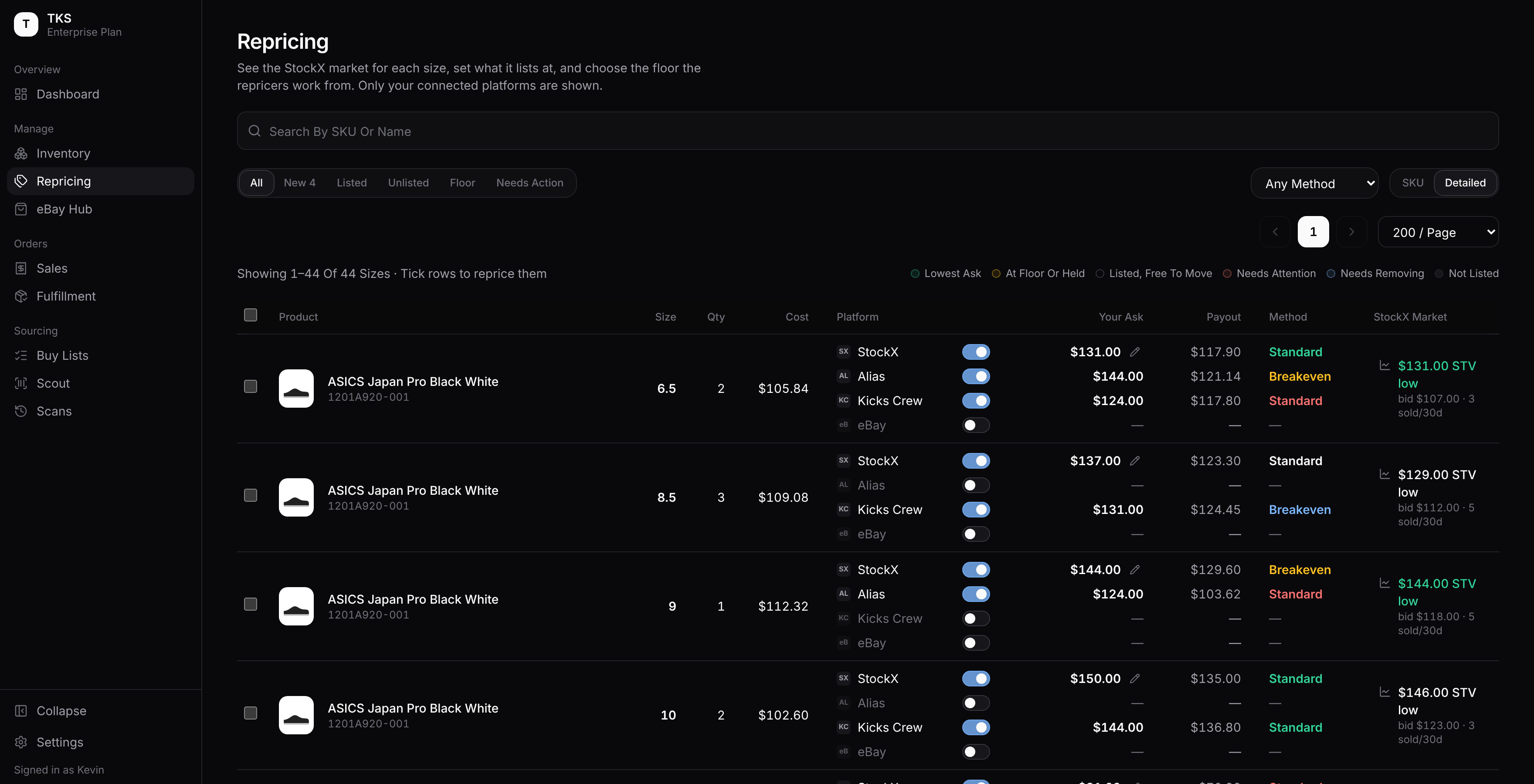
Each size gets one row, with one line per marketplace.

| Column | What it shows |
|---|---|
| Platform | Each marketplace, with its on/off switch. |
| Your Ask | Your current price there. On StockX, the pencil lets you change it; see Changing StockX Prices. |
| Payout | Roughly what you'd receive after that marketplace's fees. StockX's is worked out at the Level 5 fee with no shipping, so it reads high if you're on a lower level or pay shipping. |
| Method | The floor method, coloured by what the repricer last did (see below). Point at it for the full reason. |
| StockX Market | The lowest ask of the market this size competes in (STV low or Direct/Flex low), the highest bid, and sales in the last 30 days. Green when your ask is at or under it. Click it for the StockX Market panel. |
What The Colours Mean
| Colour | Means |
|---|---|
| Green: Lowest Ask | You're the lowest ask there. |
| Amber: At Floor Or Held | The market is under your floor, or the size is on Hold, so the price is waiting. |
| Plain: Listed, Free To Move | Switched on, and the repricer can move it. Point at it for the last thing the repricer did; not listed there means no live listing was found. |
| Red: Needs Attention | Something needs you: no floor (missing cost), an error, or it's switched on but not listed. |
| Blue: Needs Removing | Rare: it's listed with no stock behind it, and it's on its way down. |
| Grey: No Market | Switched on, but there's nothing to price against yet (no market there, or the product isn't carried). Point at it for the reason. |
| Grey line: Not Listed | Off for that marketplace. |
The SKU View
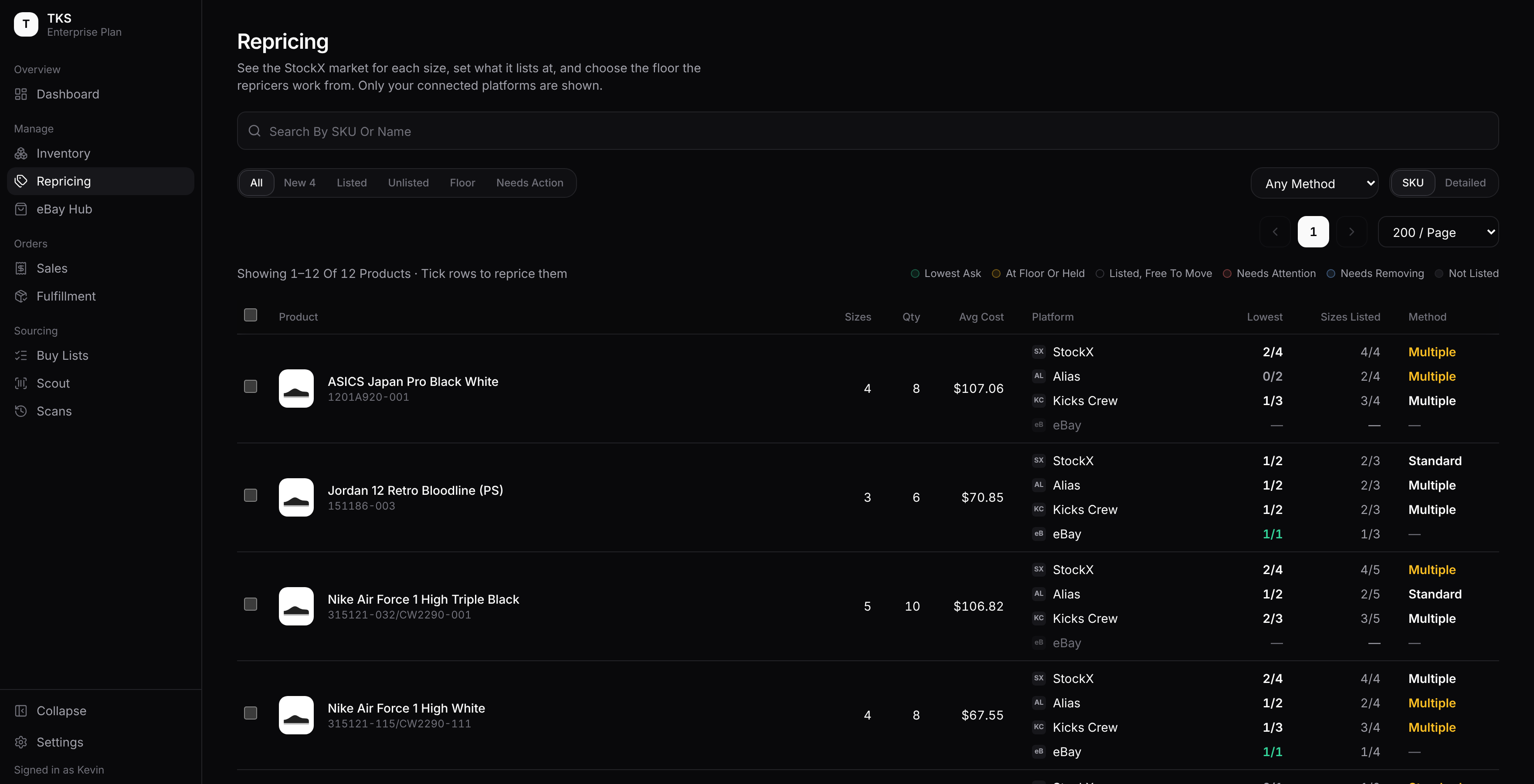
SKU shows one row per product. For each marketplace:
- Lowest: how many of its listed sizes are the lowest ask, e.g. 2/4. Green when all of them are.
- Sizes Listed: how many of the product's sizes are on there, e.g. 4/5.
- Method: the method they share, or Multiple. It's amber if any size is at its floor.
Click a product to see its sizes. Tick a product to select every size of it.
Finding Sizes
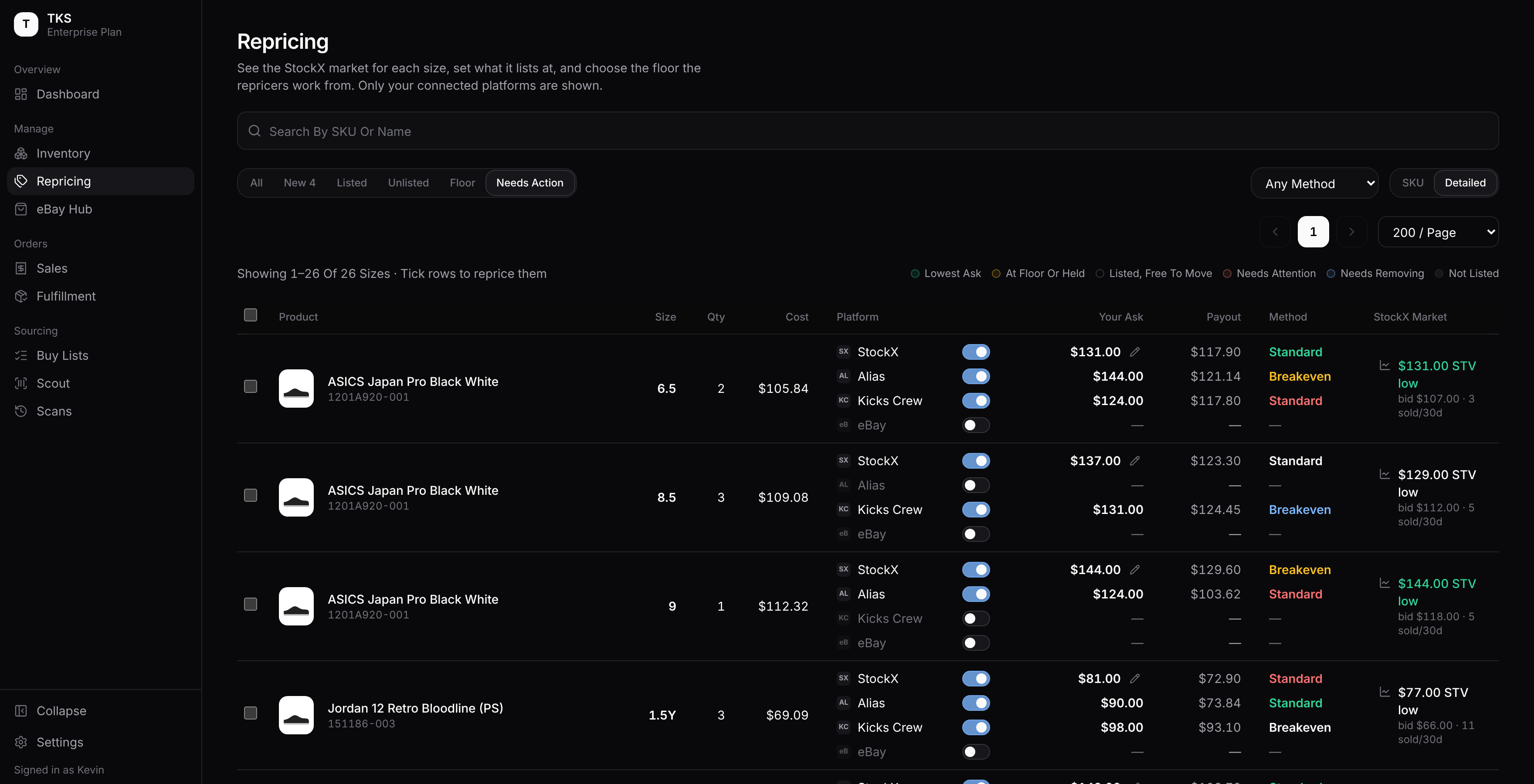
- Filters
- All: everything.
- New: stock added recently. Choose 24h, 3d, 7d or 30d beside it.
- Listed / Unlisted: switched on for at least one marketplace, or for none. A size switched on but not yet listed counts as Listed.
- Floor: at least one listing is at its floor or held.
- Needs Action: a listing that needs you: no floor, an error, switched on but not listed, or listed with no stock.
- Method
- Shows only sizes using a given method on any marketplace. Liquidate matches every percentage, and Manual matches the older fixed floors.
- Search
- Matches a SKU, name or size.
Switching Marketplaces On And Off
Use the switch on a size's line to turn that marketplace on or off.
- Turning on
- The size starts on your starting floor method from Settings. On its next run, that marketplace's repricer prices it, and StockX and Alias list it automatically. A custom item can only be turned on where it's ticked under Supported Platforms on its item page.
- Turning off
- Repricing stops for that marketplace.
Turning off does not take a listing down
If the size still has stock, TKS asks you to confirm. A listing that's already live stays up at its last price, and nothing will reprice it. Take it down on the marketplace first, or confirm only if that's what you want.
On Alias and Poizon, a listing you leave up after switching off is not taken down when the size sells out, so it could sell a pair you no longer have. StockX, Kicks Crew and eBay are still taken down at a sell-out. To stop selling a size somewhere, take the listing down there first, then switch it off. While a marketplace is switched on, you never need to switch it off: TKS takes the size down by itself when it sells out.
A restocked size starts fresh. When a size that sold out comes back through Add Stock or a buy-list import, it's off on StockX, Alias, Kicks Crew and Poizon until you turn it on again, with a fresh method. So a restock never picks up an old Hold or an old floor by accident. eBay keeps its listing.
Changing Many Sizes At Once
Tick sizes (or whole products in the SKU view). A bar appears along the bottom.

- Set: pick the marketplaces to change, or All.
- To: pick a floor method. For Liquidate, type the percentage off cost. When every selected size has the same cost, it shows the payout that leaves, e.g. 20 % Off Cost = $84.00.
- Click Apply To N Listings.
Choosing a method for a marketplace that's off for a size turns it on with that method, in the same step. Turn Off in the same list switches the chosen marketplaces off for every selected size, with the same warning as above. If some can't be changed, the bar says how many and shows the first few reasons.
Changing StockX Prices
You can set the StockX price yourself as a starting point. The repricer carries on from it afterwards, and it's never allowed under the floor.
- In the table
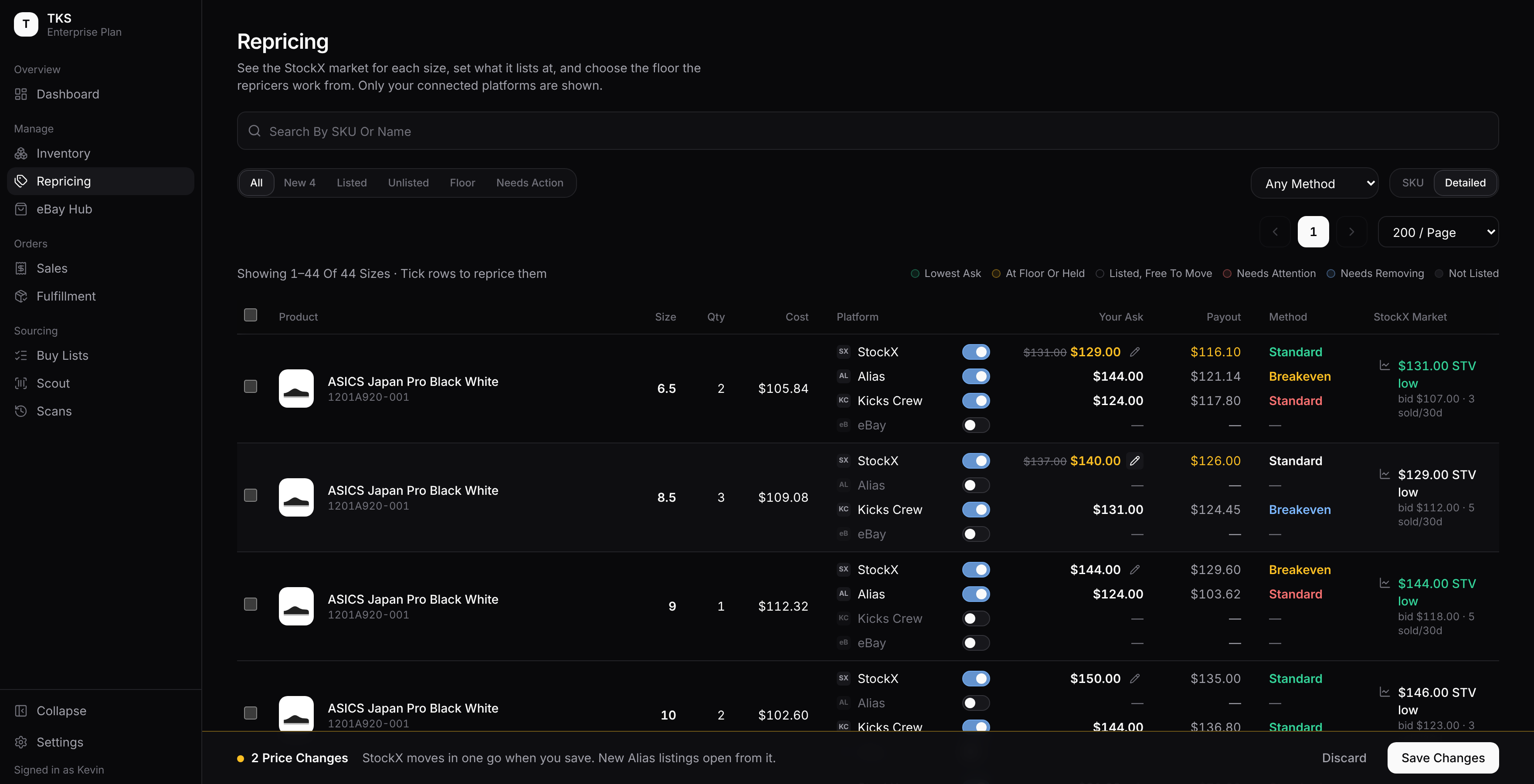
- Click the pencil next to a StockX price, type the new price, and press Enter. The row shows
oldnew in amber. Escape cancels. - Change as many sizes as you like. Nothing is sent yet.
- Click Save Changes in the bar at the bottom. Discard throws the changes away.
If you try to leave with changes still unsaved (another tab, the Back button, closing or refreshing), TKS asks first: Stay to save them, or Leave Without Saving.
- Click the pencil next to a StockX price, type the new price, and press Enter. The row shows
- What happens when you save
All the changes go to StockX together. TKS then reads StockX back to check each price actually changed before it records it.
- Sizes with nothing live on StockX
These are listed at the new price, but only if they have pairs at home, StockX already knows the size, and auto-listing isn't paused (Vacation or Preview mode). Otherwise the price is kept as the starting point and used when the size is next listed.
- If a price doesn't go through
The bar keeps it, with the reason:
- it's under the floor
- StockX is switched off for that size
- StockX refused it
- StockX still shows the old price
- the ask has gone (sold or removed)
Fix it and save again. The rest are saved.
The StockX Market panel (below) has the same price box for one size at a time.
StockX Market
Click a size's StockX Market cell for everything about that size on StockX.
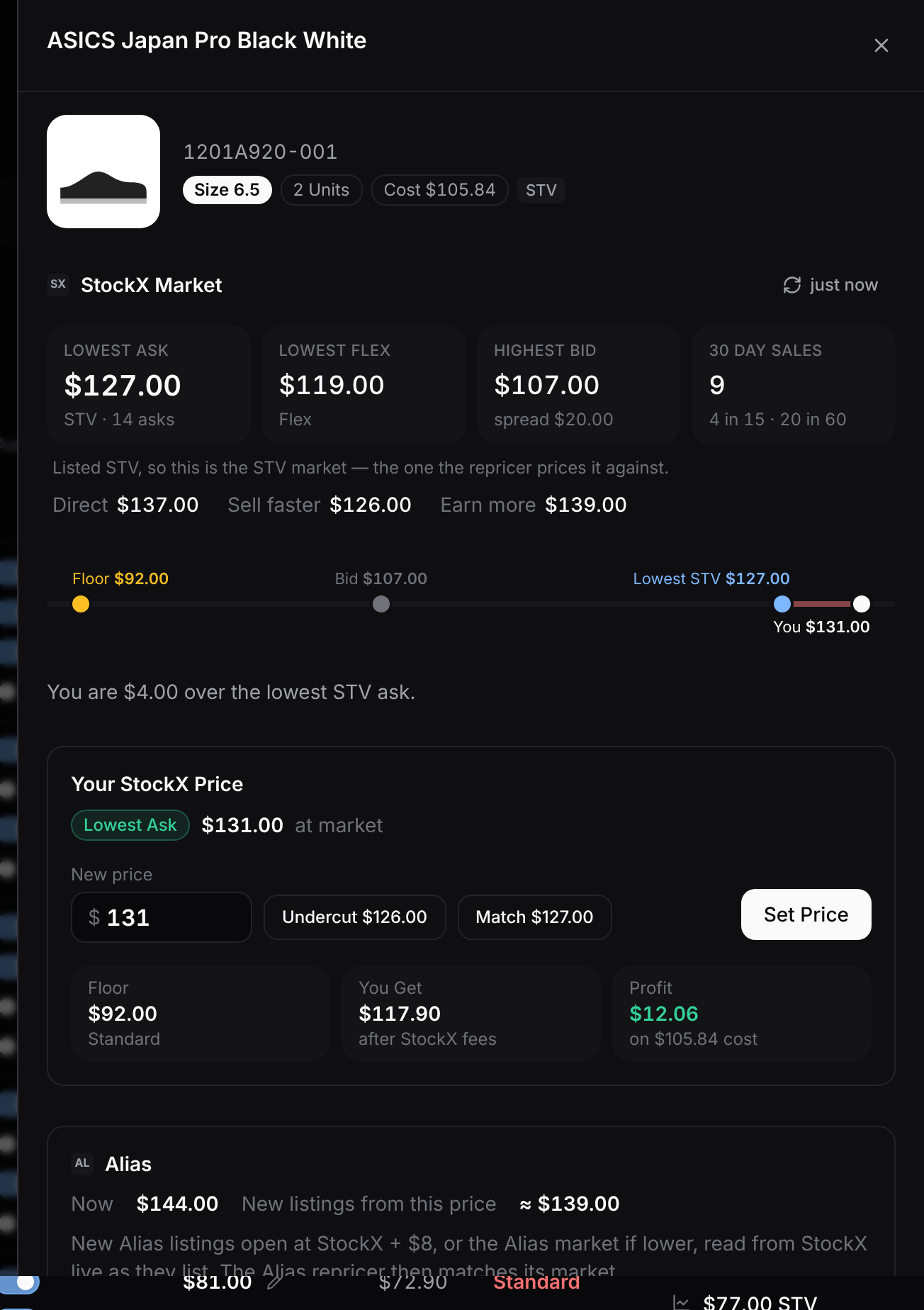
- The header
- The product photo, the size, how many units you hold, your cost, and how it's listed on StockX: STV, Direct, Flex, or a mix like Flex + STV. The listing type is read from your live asks on each StockX run. Until a run has seen one, it says Type: next reprice.
- The four boxes
- Lowest Ask, Lowest Flex, Highest Bid (with the spread to the lowest ask) and 30 Day Sales (with the 15- and 60-day counts).
- Which market
- The repricer prices an STV ask against the STV market, and a Direct or Flex ask against the Direct market. The panel and the table show the one your size competes in, and say which. A size whose type isn't known yet shows the STV market.
- The price line
- The highest bid, the lowest ask, your floor and your price on one line. You can see at a glance whether you're above the market or held by your floor.
- Your StockX Price
- Where the size stands now (Lowest Ask, Held At Floor, Not Listed…), and a price box with Undercut ($1 under the lowest ask) and Match. The Floor, You Get and Profit cards update as you type. You Get and Profit use the Level 5 fee with no shipping, like the table's Payout. The floor shown is worked out for your default listing type. The button reads Set Price, List At This Price or Save Price, depending on whether the size is listed and has pairs at home. It checks StockX the same way as Save Changes.
- Alias
- What Alias is listed at now, and roughly where a new Alias listing would open from the price you've typed.
- Where the numbers come from
- StockX's data, saved on each StockX run, plus a fresh read from TKS's market-data provider when you open the panel (kept for 3 hours). Refresh asks again.
Auto-Listing
You don't list on StockX or Alias by hand. For every size that's switched on and has pairs at home:
- StockX: one ask per size
- Listing type: new asks go up as STV (called Standard in Settings) or Direct, whichever you chose in Settings → Connections → StockX.
- Price: the price you set, or the size's last known price, or the market's lowest ask. Never under the floor.
- After a sale: if pairs are left, the next ask goes up straight away.
- Checked: TKS reads StockX back after listing to confirm each ask is really live.
- Alias: two listings, then one at a time
- Opening: a size opens with 2 listings, or 1 if you hold one pair. New listings go up a product at a time, one every 5 minutes, so with a lot of new stock it can take a few hours for everything to appear.
- After a sale: once the sale is matched to your stock, the size gets 1 more. Alias orders can reach TKS up to 30 minutes late, so TKS never refills a size just because a listing disappeared; that listing may have sold.
- No overselling: when your last pair sells anywhere, the size comes down everywhere. An Alias order is only confirmed when there's a pair in stock to match it.
- Opening price: worked out from what StockX is listed at at that moment. By default it's StockX + $8, or the Alias lowest ask if that's lower, and never under the floor. Choose the rule in Settings → Connections → Alias: StockX + an amount, Same as StockX, or Match the Alias market.
- Checked: each new Alias listing is confirmed on the next Alias run. One that never appeared is flagged and put up again.
- Consigned pairs are never auto-listed elsewhere.
- Pairs at StockX Flex or Poizon only sell there; see Consignment.
While You're Away
Vacation Mode (Settings) does something different on each marketplace, and Settings lists exactly what for yours. The Dashboard shows a banner while it's on.
| Marketplace | While Vacation Mode is on |
|---|---|
| StockX | Raises all Standard/Direct listings $200 above the current ask, and keeps Flex listings repricing and selling. |
| Kicks Crew | Deletes all listings until you turn it off, then relists them. |
| Alias, Poizon | Pauses all repricing. Also turn on vacation mode in the Alias and Poizon apps, or those listings can still sell. |
| eBay | Untouched. Turn on Time Away yourself on eBay. |
In Preview mode, every repricer works out what it would do but sends nothing to the marketplaces.
Common Questions
My price didn't move even though I'm not the lowest ask. Check the colour. Amber means the market is under your floor, so TKS is waiting. Lower the floor (Breakeven or Liquidate) if you want it to go lower. Also remember each marketplace runs on its own schedule: StockX every 2 hours, the others every 4.
A size shows red and "no floor". It has no cost. Standard, Breakeven and Liquidate all need one. See Inventory → Common Questions for adding a missing cost.
Why is my Alias price above my floor and not matching the market? Alias only lets TKS move a listing to the lowest ask. When the lowest ask is under your floor, TKS leaves the listing where it is rather than matching a price you won't sell at.
Why did my StockX price go back up after I lowered it? You set it under the floor, and the repricer raises anything under the floor back up to it. Lower the floor method first.
I turned a marketplace off but the listing is still up. Turning off stops repricing; it doesn't remove the listing. Take it down on the marketplace now, especially on Alias or Poizon, where TKS won't take it down at a sell-out once the size is switched off.
Why is Kicks Crew higher than the lowest ask there? That lowest ask may be a junk ask (under half the usual price), or StockX + $10 is the ceiling. Kicks Crew is capped at your StockX price + $10.